


Vozo AI Video Translator & Dub
4.4897.00 Reviews
App Specs
- Version
- 5.16
- Updated On
- License
- Free
- Downloads
- 1,000,000+
- Developer
- Blink by Vozo AI for Talking Videos
- Categories
- Video Players & Editors
- Platform
- Android, iOS
Screenshots
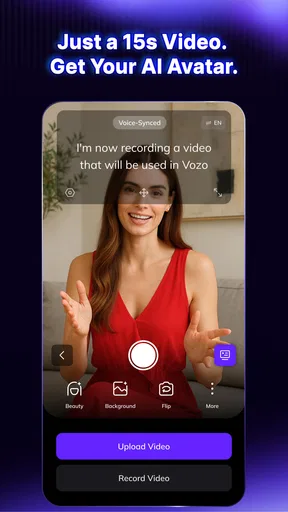
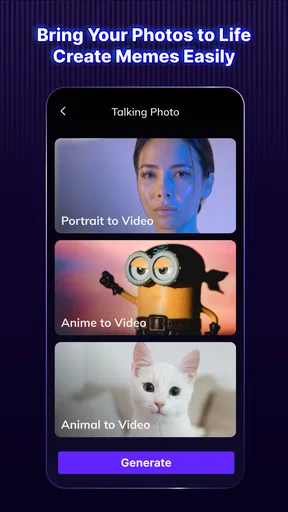
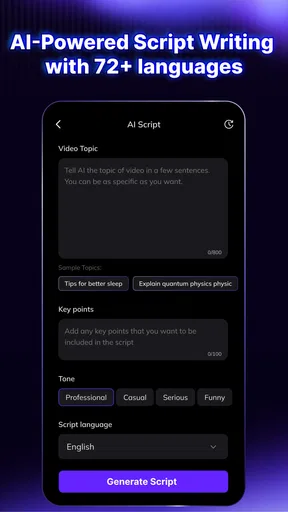
 Analysis by AppCompare
I reach for Blink Captions by Vozo AI when I want a video to make sense with the sound off, but I wouldn’t treat it as a magic button that turns every clip into a finished post. Its appeal is the mix of captioning and other AI-assisted video and image tools in one mobile app. That can make a quick social edit easier, especially when I’m working between errands or trying to publish before I’ve had time to sit down at a computer.
Where the network becomes part of the workflow
Connectivity matters most when a task depends on AI processing or moving a finished clip to another service. I’d plan to have a reliable connection before starting a captioning session, rather than assuming every step will work equally well on a weak signal. A slow network can turn a supposedly quick edit into a wait, and that matters when I’m preparing a post just before a meeting or trying to share a timely update.
For a smoother routine, I’d choose the source clip and decide what I want the captions to accomplish before opening the editing flow. Are they there to make speech understandable without audio, emphasize a punchline, or help someone follow a short explanation? That decision keeps me from spending a connection-dependent session experimenting without a clear endpoint. It also helps me judge the result by readability, not just by whether the text looks lively.
Useful on a phone, with sensible limits
The mobile format suits short clips that are already on hand: a quick demonstration, a behind-the-scenes moment, or a personal update recorded while out. I can imagine a small business owner filming a product detail between customers, then adding captions before sharing it later that day. For that kind of bite-sized job, staying on a phone can be more convenient than transferring footage to a desktop editor and starting over there.
That convenience has a trade-off. A phone screen is fine for checking the general look, but small text and fast cuts are easier to miss when reviewing a clip in a hurry. I’d watch the entire export at a comfortable size before posting, paying particular attention to names, numbers, and brief phrases spoken over background noise. A quick glance at the opening frame is not enough to catch a caption that becomes hard to read later.
If you’re editing a long interview, building a carefully paced multi-track video, or need detailed control over every cut, a desktop editor is likely the better fit. Blink’s appeal is speed and approachable tools, not replacing a full production workstation. I’d also think twice before using an AI-assisted result as the only version of an important announcement: review the words and timing first, since automated text can still need a human check.
Recovering when an edit does not go smoothly
When a processing step stalls or a share does not go through, I try to separate the problem into two parts: the edit itself and the handoff. First, I’d check whether the clip is still available in the current project and whether the preview can be reviewed. Then I’d confirm the connection before trying the operation again. That simple pause is more useful than tapping repeatedly and creating uncertainty about which version is ready.
Worth Reading Before You Choose

Flipboard Shows What News Apps Must Do Beyond the Feed

Switching to Android Auto Means Rethinking Your Driving Routine

Google Calendar Makes a Crowded Week Easier to Manage

Ludo King Makes the Most of the Minutes Between Plans

Baby Panda World Brings Quick Play to Modern Phones, but Its Game Library Feels Busy

ESPN’s Live Game View Makes Following Close Games Easier
For anything I would hate to lose, I keep the original video untouched until I’ve confirmed that the finished version is saved where I need it. I also make a small test edit before committing to a longer piece or a deadline-sensitive post. This is not a special feature claim; it’s a practical habit for any phone-based editing workflow, and it reduces the cost of having to restart if a network interruption gets in the way.
Keeping data use deliberate
Video files can be large, so I’d avoid starting a big edit or share while relying on a limited mobile connection unless I’m comfortable with the potential data use. A useful compromise is to choose a short, representative clip first and see how the workflow feels before bringing in several longer recordings. That gives me a realistic sense of the task without turning a casual experiment into a large upload or a long wait.
I’d also be selective about which footage I use. A private family moment, a customer conversation, or a work recording may deserve a more cautious workflow than a public-facing social clip. Before sending sensitive material through any AI-assisted tool, I’d consider whether that service is appropriate for the content and check its current privacy information. That’s a sensible decision point, not a reason to assume the app handles every kind of footage the same way.
Getting Started with Blink Captions
First things first, let’s talk about getting this app on your device. Whether you're on Android or iOS, downloading Blink Captions by Vozo AI is a breeze. I hopped onto the App Store, and within a minute, I was ready to dive in. The installation process was seamless, with clear instructions and a quick setup, which is always a win in my book.
User Interface and Experience
Now, onto the user interface. The app greets you with a clean and modern design that’s super intuitive. The menu layout is straightforward, making it easy for anyone, even if you're not a tech whiz, to navigate through different features. I appreciate how it doesn’t overwhelm you with too many options right off the bat, but rather guides you gently through the process of creating captions.
Features That Stand Out
The real magic happens when you start exploring the features. Blink Captions offers a variety of styles and effects that can turn a simple photo or video into something spectacular. Here are a few of my favorite features:
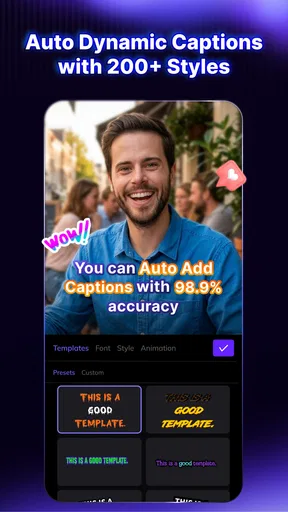
- Auto-Captions: This feature automatically generates captions for your videos. It's impressively accurate and saves a ton of time compared to manually typing everything out.
- Customization Options: From fonts to colors, you can tweak every little detail to match your aesthetic. I spent a good amount of time just playing around with different combinations.
- Real-Time Preview: Seeing changes in real-time is super handy. You can instantly see how your caption looks with your media, allowing for quick adjustments.
Performance and Reliability
One thing I always look out for is how smoothly an app runs. With Blink Captions, I was pleasantly surprised by its performance. It didn’t crash or lag, even when I was using some of the more intensive features. Plus, the app is light on battery consumption, which is always a plus when you're using it on the go.
Creative Community and Sharing
Another aspect I love is the community feel. The app allows you to share your creations directly to social media platforms, and you can also explore other users’ captions for inspiration. It’s like having a mini creative hub right in your pocket. The sharing process is straightforward, with just a few taps needed to get your content out there.
Why You’ll Love It
In a nutshell, Blink Captions by Vozo AI is perfect for anyone looking to enhance their digital storytelling. Whether you're a social media influencer, a business owner, or just someone who enjoys creating fun content, this app has something for you. The combination of ease-of-use, powerful features, and a supportive community makes it a must-have.
So, next time you’re looking to jazz up your social media game, consider giving Blink Captions a try. It’s a fantastic tool that not only simplifies the process of adding captions but also makes it incredibly fun. Happy captioning!
Who I think will get the most from it
I’d recommend it first to people who regularly make short, spoken videos and want captions without turning editing into a separate project. A creator can use it to prepare a quick explainer; a shop owner can make a short product clip easier to follow in a noisy feed; and someone sharing family updates can add text so viewers can understand the conversation with their sound turned down. The app’s mix of captioning and other AI video tools is useful when those tasks sit close together in a simple workflow.
It is less compelling if your main goal is precise, frame-by-frame editing or a polished production with layered audio and careful color work. In that situation, I’d use a conventional video editor built around a timeline and detailed controls, then add captions there if that workflow suits the project. Blink is more attractive when getting a clear, presentable result matters more than having exhaustive control over every editing decision.
A practical way to use the AI tools
One helpful habit is to treat automatic captions as a first draft, not a final transcript. I’d play the source with the captions visible and check proper names, numbers, accents, and words spoken quickly. Those are the places where a small recognition mistake can change the meaning of a clip. If a video is meant to teach or inform, I’d also make sure the text stays readable against the image rather than assuming a decorative style will work on every shot.
The other tools can broaden what I’d try, but they also make it easier to lose focus. If I’m making a talking-style video or working with an avatar, I’d decide whether that presentation genuinely helps the message before adding it. A direct camera clip may feel more personal for a familiar audience, while an avatar could be useful when I want a consistent presentation without appearing on screen. The point is to choose a format for the viewer, not use an AI option simply because it is available.
Choosing between free access and paid use
The app is free to install, and its in-app purchases range from $7.99 to $189.99 per item. I’d start by identifying the exact task I want to solve and trying the available workflow before paying for anything. Those purchase prices span a broad range, so I would check what a specific option includes in the app and whether it matches how often I expect to use it. Someone making occasional personal clips may have different needs from a creator who relies on captioning for regular work.
Blink Captions is rated for Everyone, and it has an average rating of 4.5 from around 103,000 ratings, with more than 1 million installs. Those figures suggest a sizeable audience, but they do not tell me whether a particular caption will be accurate for my voice, recording conditions, or preferred style. I’d test it on a representative clip before building a routine around it. The app was released on February 28, 2023, and version 5.11 lists Android 9 as the minimum operating system requirement.
What to expect from an ordinary editing session
Picture recording a short cooking tip at home, then noticing that the kitchen noise makes the spoken instruction easy to miss. I’d bring the clip into Blink, generate captions, and review the wording while watching the video rather than reading the text separately. Next I’d adjust the presentation so the words remain legible over changing backgrounds, then watch the whole result once more before sharing. That last playback is where I can catch a line that appears too briefly or covers an important detail in the frame.
If the connection is unreliable, I’d avoid scheduling this as a last-minute job. I’d prepare the source clip earlier, keep the original, and leave enough time to retry a processing or sharing step if needed. For a time-sensitive post, a simple manually edited caption or a familiar editor may be the safer choice if it avoids a workflow delay. Convenience is valuable, but only when it fits the deadline.
How it fits among video editors
Compared with a basic editor that focuses on trimming and arranging clips, Blink’s distinctive draw is its emphasis on captions and AI-assisted presentation. Compared with a more comprehensive editing suite, it is easier to approach for a focused social video but is not the tool I’d choose for every complex production. That makes it a useful companion rather than an automatic replacement: I can use it when captions or a talking-video treatment are the main job, and move to a fuller editor when the project demands more detailed assembly.
For viewers deciding whether to try it, the main question is whether these specific tools match the clips they actually make. If captions are a frequent need and a phone-first workflow sounds convenient, Blink is worth exploring. If you rarely edit video, need extensive manual control, or cannot risk waiting on a connection during a deadline, another approach may suit you better.
My connectivity verdict
Connectivity is a practical part of using Blink Captions, especially around AI-assisted processing and sharing, so I would not plan a rushed edit around an uncertain signal. With a stable connection, a short source clip, and a careful final playback, it can make caption-led social videos feel much less laborious. My recommendation is to try it on a low-stakes clip first, check the wording and visual treatment, and decide from that experience whether its mobile workflow fits your routine.
Pros
- User-friendly interface for easy navigation.
- Accurate real-time captioning capabilities.
- Supports multiple languages seamlessly.
- Customizable caption styles and fonts.
- Low battery consumption during use.
Cons
- Limited offline functionality available.
- Occasional lag in crowded environments.
- Requires continuous internet connection.
- Free version has limited features.
- Ads can be intrusive in free version.
FAQs for Vozo AI Video Translator & Dub
What is Blink Captions by Vozo AI, and how does it work?
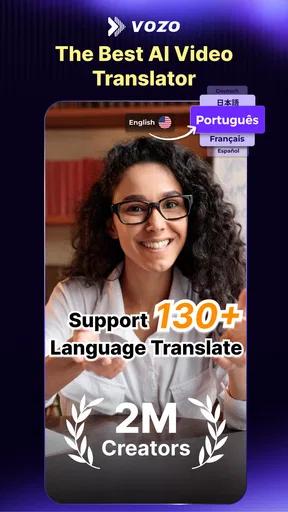
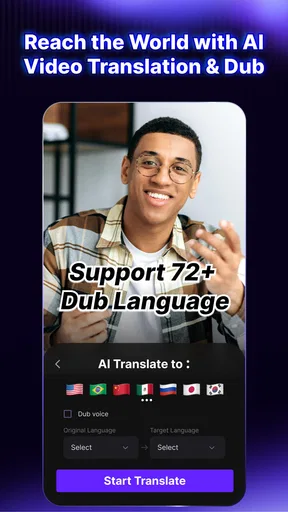
Blink Captions by Vozo AI is an innovative app designed to automatically generate captions for your videos using advanced AI technology. By simply uploading your video, the app processes the audio and produces accurate captions, enhancing accessibility and engagement. It supports multiple languages and offers customizable styles to suit your content needs.
Is Blink Captions by Vozo AI free to use, or does it require a subscription?
Blink Captions offers a free version with basic features, allowing users to try the app's capabilities. However, for advanced features like unlimited video length, premium styles, and faster processing, a subscription is required. The subscription plans are competitively priced, providing value for both casual users and professionals.
What video formats are supported by Blink Captions by Vozo AI?
Blink Captions by Vozo AI supports a wide range of video formats, ensuring compatibility with most devices and editing software. Common formats such as MP4, MOV, AVI, and MKV are accepted, making it easy to upload and edit your videos without the need for conversions or additional software.
How accurate are the captions generated by Blink Captions by Vozo AI?
The captions generated by Blink Captions are highly accurate, thanks to the app's cutting-edge AI technology. It effectively captures speech and transcribes it with precision. While no automated system is perfect, Blink Captions is continuously updated to improve accuracy and includes an easy-to-use editor for manual adjustments if needed.
Can I customize the appearance of the captions in Blink Captions by Vozo AI?
Yes, Blink Captions by Vozo AI offers extensive customization options for caption appearance. Users can adjust font size, style, color, and placement to match their video’s aesthetic. This flexibility ensures that captions not only enhance accessibility but also align with the creative vision of the content creator.


